 FrameDump
Guide
How to write curved text on a photo
Curved text follows a line instead of sitting in a straight row. Wrap a phrase around a person, let it run along a road or a coastline, or circle it around a photo. It's a small touch that makes a story or a post look designed, and it's easier than it looks.
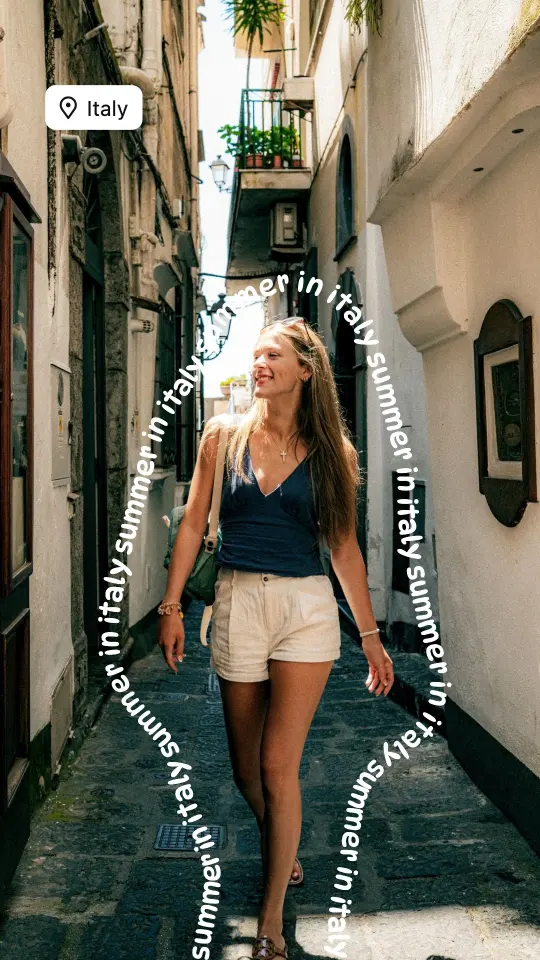
Ideas for curved text
- Around a person. A phrase that loops around someone walking or standing.
- Along a line in the photo. The edge of a road, a wave, a hill or a staircase.
- Around a frame. Words that hug the edge of a polaroid or a photo.
- A wavy title. A date or a place name that bends across the top of a story.


Make it in FrameDump
- Open your design, tap + and choose Curved Text.
- Type your words. A short phrase repeated a few times, like “summer in italy summer in italy”, runs nicely all the way around a shape.
- Draw the path with your finger, right on the photo. The text follows the line as you draw.
- Not quite right? Tap Draw to add another line, or Erase to remove part of the path.
- Pick a font, a colour and a size, and move the text into place.
Curved Text is part of FrameDump Pro.
Tips
- Follow what's already there. Curves look best when they trace a real line in the photo.
- Keep faces clear. Let the text go around a person, not across their face.
- Make it readable. White or black text with a slight contrast to the photo is easiest to read; avoid very thin fonts on busy backgrounds.
- Go short. A few words repeated look better than a long sentence on a curve.
Get started
Download FrameDump free on the App Store or Google Play, or see our story templates for ready-made designs with curved text. More guides: how to make aesthetic Instagram stories.